

Almost every sales team starts paying commissions from a spreadsheet. It's free, it's flexible, and on day one it's faster than any software. The question isn't whether Excel can track commissions. It can. The question is when the spreadsheet starts costing more than it saves.
This page compares the two honestly: what Excel does well, where it breaks, how Delta Drive handles the same work for teams that sell with Pipedrive, and how to tell which one fits your team right now.
The short answer
Stick with Excel if
- You have one to three reps.
- Everyone is on one flat commission rate, with no tiers or targets.
- Deals rarely change after they're marked won.
- One person owns the sheet and has time for it every month.
- Reps don't need to see their numbers before payday.
Switch to Delta Drive if
- Your team is growing past a handful of reps.
- Your plan has tiers, accelerators, targets or bonuses.
- Different reps are on different plans.
- Deals get edited, cancelled or reassigned after you export them.
- Reps ask about their payouts, or keep their own spreadsheets.
- Finance needs a locked, approved number for payroll.
Delta Drive vs Excel at a glance
| Capability | Excel | Delta Drive |
|---|---|---|
| Where the data comes from | A manual export from Pipedrive, frozen at the moment you download it | Synced from your Pipedrive account |
| How commission is calculated | Formulas you build, copy and maintain | Calculated from the plan you set up |
| Flat commission rates | Yes | Yes |
| Tiered commission (marginal or retroactive) | Possible with nested formulas | Built in, with either method |
| Monthly targets and target bonus | Possible, with more formulas | Built in, per rep |
| Different plans for different reps | Separate tabs or columns | A plan per rep |
| Plan changes over time | New numbers overwrite the old ones unless you copy the file | Previous plan versions kept for past months |
| Data checks before payday | Manual filters, when there's time | Flags won deals with no matching rep, zero-value deals and unusual payouts |
| Manual adjustments (SPIFFs, clawbacks) | Edited cells and comments | Logged with an amount and a reason |
| What reps can see | Whatever you send them, usually on payday | Their own dashboard: earnings, progress to the next tier, payout history |
| Sales leaderboard | Build it yourself | Included |
| Commission inside Pipedrive | No | Shown in the Pipedrive deal view |
| Closing the month | Save a copy and hope nobody edits it | Lock the month; locked months can't change |
| Report for finance | Build a summary and email it | Report sent to your accounting email |
| Who sees what | One shared file, so everyone sees everything or nothing | Roles for admins, managers and reps |
| Setup | Fast for a simple plan | Guided setup, walked through on the demo |
| Cost | Usually already paid for | Subscription (pricing on the demo call) |
| Flexibility | Unlimited: anything you can write a formula for | Covers standard plans; unusual one-off rules go in as manual adjustments |
Excel wins on cost and flexibility. Delta Drive wins on everything that happens after the formula: keeping the data current, keeping history, catching mistakes, and letting everyone see the same number.
How commission tracking works in Excel
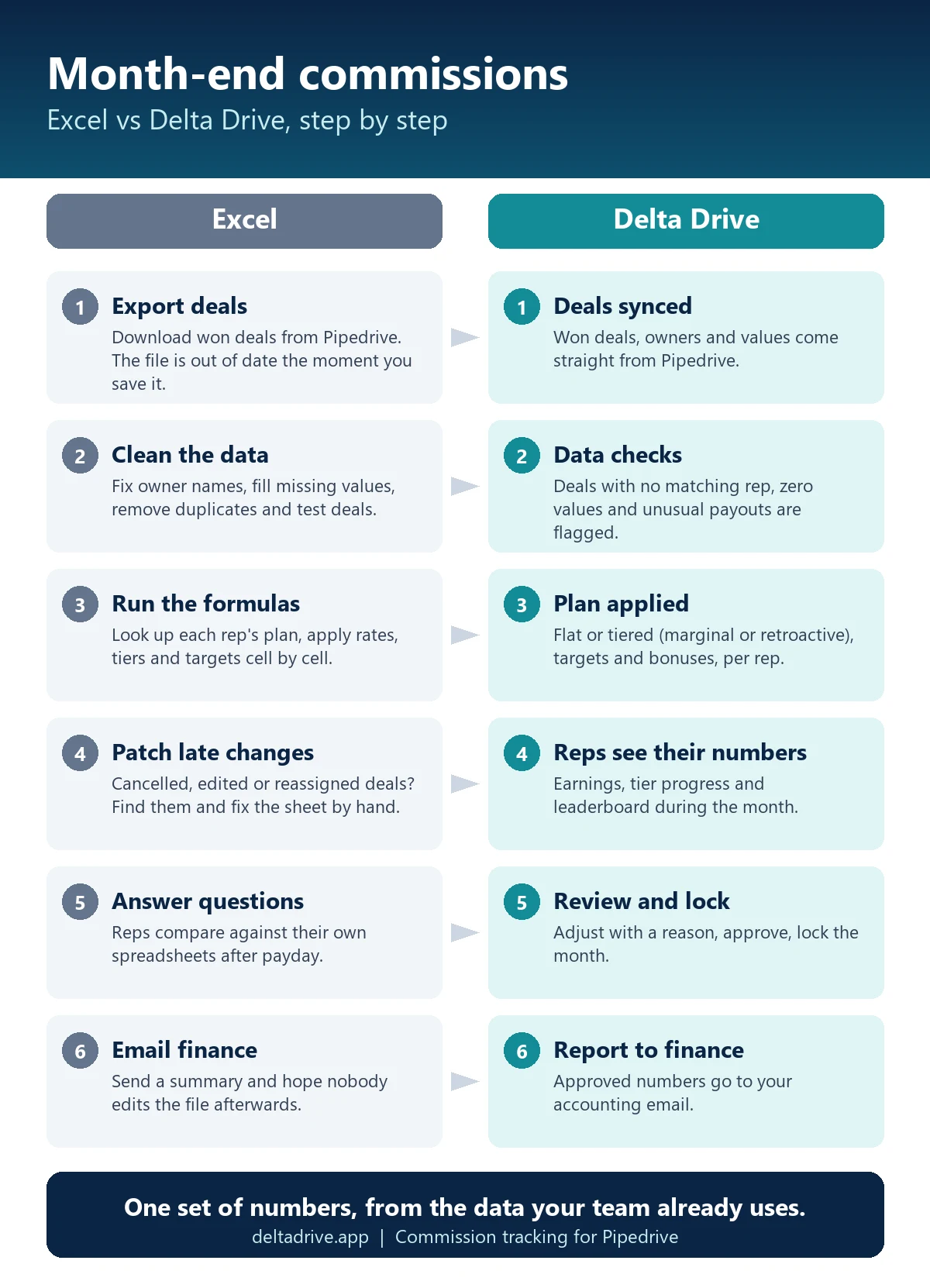
If you're doing it in a spreadsheet today, your month probably looks like this:
- Export won deals from Pipedrive. Filter by status and close date, export to CSV.
- Clean the data. Fix owner names, fill in missing values, remove duplicates and test deals.
- Match each deal to a rep and a plan. Usually with XLOOKUP or VLOOKUP against a plans tab.
- Apply rates, tiers and targets. One formula per rule.
- Add adjustments. Bonuses, deductions, splits, the deal that "counts this month as an exception."
- Check it, then send it. To each rep, to the sales manager, to finance.
- Answer questions. Usually on the 3rd of the next month.
Excel commission formulas you'll need
These cover the most common plans. Column B holds the rep's total sales for the period.
Flat rate (8% of sales):
=B2*8%
Total sales per rep for the month (deals on a sheet called Deals, owner in column B, value in D, close date in E):
=SUMIFS(Deals!D:D, Deals!B:B, A2, Deals!E:E, ">="&$H$1, Deals!E:E, "<="&$H$2)
Marginal tiers (5% up to $50,000, 8% above):
=MIN(B2,50000)*5% + MAX(B2-50000,0)*8%
Retroactive tiers (8% on everything once sales pass $50,000):
=B2*IF(B2>50000,8%,5%)
Target bonus ($1,000 when sales reach the target in column C):
=IF(B2>=C2,1000,0)
At $70,000 in sales, the marginal formula returns $4,100 and the retroactive one returns $5,600. Same plan on paper, a $1,500 difference in practice, which is why the method has to be written down. (More on that in what tiered commission is.)
Notice the small details too: > versus >= decides what happens to a rep who lands exactly on $50,000. In a spreadsheet, that decision lives in a formula nobody reads.
Where the spreadsheet starts to break
Excel itself doesn't make mistakes. The process around it does.
- The export goes stale. The moment you download the CSV, it stops matching Pipedrive. Deals cancelled, edited or reassigned after the export don't make it into the sheet, and the rep who checks Pipedrive sees a different number from the one you paid.
- Formulas drift. A formula copied one row off. A hard-coded number typed over a formula "just this once." A range that doesn't include the new rep. These errors don't announce themselves.
- History gets overwritten. Change the plan in April and recalculate March, and March's numbers change too, unless someone remembered to keep a copy of the old file.
- One person holds the logic. When the person who built the sheet is on vacation, payouts wait. When they leave, nobody fully understands it.
- Reps can't see inside it. So they build their own copies. That's shadow accounting, and it turns every payday into a reconciliation.
- It doesn't scale. Every new rep, plan or exception adds rows, tabs and checks. The work grows with the team, not with the complexity of the business.
For the specific errors these lead to, and a checklist that catches them, see Common Commission Calculation Mistakes.
How Delta Drive handles the same month
Delta Drive does the same job as the spreadsheet, without the export in the middle:
- Deals come from Pipedrive. You connect your Pipedrive account once. Won deals, owners and values are synced, so commissions are calculated from the same data your team works in.
- Data checks run first. Won deals owned by someone who isn't set up as a rep, deals with no value, and payouts far outside a rep's normal range are flagged before anyone is paid.
- Your plan is applied. Flat rates or tiers (marginal or retroactive), monthly targets, target bonuses, a different plan per rep. When a plan changes, the previous version is kept for past months.
- Reps follow their numbers during the month. Each rep sees their earnings, how far they are from the next tier, the team leaderboard and their payout history. Reps can even see what a deal is worth to them inside the Pipedrive deal view.
- Managers review and lock. Add a bonus or deduction with a reason, approve, and lock the month. A locked month can't be changed.
- Finance gets the report. The approved numbers go to your accounting email, ready for payroll.
Month-end, side by side
| Step | Excel | Delta Drive |
|---|---|---|
| Getting the data | Export, clean, de-duplicate | Already synced from Pipedrive |
| Calculating | Run and double-check formulas | Calculated from the plan |
| Catching errors | Manual filters, if there's time | Data checks flag issues |
| Rep questions | After payday | Reps see their numbers during the month |
| Adjustments | Edited cells | Logged with a reason |
| Closing | Save a copy of the file | Lock the month |
| Finance | Email a summary | Report to your accounting email |
What Excel really costs
Excel looks free because the license is already paid for. The real cost is everything around it:
- Admin time: the hours someone spends each month exporting, cleaning, calculating and checking.
- Rep time: the time reps spend checking their own numbers instead of selling.
- Errors: underpayments that cost trust, overpayments that cost money, and the time spent finding them.
- Key-person risk: what happens to payouts when the one person who understands the sheet is away.
Run your own numbers. Take the hours spent on commissions each month, multiply by the hourly cost of the people doing it, and add a realistic error rate on the commission you pay. The calculator on our homepage does the error part for you with your own inputs.
Can you keep Excel?
Yes, and many teams do. Excel is great for one-off analysis, plan modeling and "what if we changed the rate" conversations.
What works badly is two sources of truth for payouts. If Delta Drive calculates commissions and a spreadsheet calculates them again "just to check," you've rebuilt the problem. Pick one system for the number that gets paid, and use Excel around it, not instead of it.
How to move from Excel to Delta Drive
- Write your plan in plain words. Rates, tiers and their method, targets, bonuses, what counts as a won deal, when the month closes.
- List your reps with their plan, target and base salary.
- Connect Pipedrive and choose which team members to include.
- Enter the plan in Delta Drive.
- Run one month in parallel. Calculate it in both, compare, and investigate every difference. Most differences turn out to be a stale export or a formula nobody knew about.
- Switch. From the next month, Delta Drive is the number that gets paid.
We walk through steps 3 to 5 with you on the demo call, using your own pipeline.
Related terms
- Tiered commission: marginal vs retroactive, with examples
- Commission accelerator: higher rates above quota
- OTE (on-target earnings): base plus target commission
- Commission clawback: taking back commission on deals that fall apart
- Shadow accounting: the reps' secret spreadsheets
FAQ
Can Excel calculate sales commissions?
Yes. With SUMIFS, lookups and IF formulas, Excel can calculate flat rates, tiers, targets and bonuses. The limits aren't in the math. They're in keeping the data current, protecting history when plans change, and letting reps see their numbers.
What is the Excel formula for tiered commission?
For marginal tiers paying 5% up to $50,000 and 8% above, use =MIN(B2,50000)*5% + MAX(B2-50000,0)*8%. For retroactive tiers, where the higher rate applies to all sales once the threshold is passed, use =B2*IF(B2>50000,8%,5%).
Is a commission spreadsheet template enough for a small team?
For one to three reps on a single flat rate, often yes. Once you add tiers, targets, different plans per rep or frequent deal changes, the spreadsheet needs more maintenance than it saves.
Does Pipedrive calculate commissions?
Pipedrive tracks deals, deal values and sales goals, but it doesn't apply commission plans with tiers, targets or bonuses. Teams either export deals to Excel or use a commission tool that connects to Pipedrive, like Delta Drive.
When should a sales team switch from Excel to commission software?
When the month-end calculation takes real time every month, when reps regularly question their payouts, when plans include tiers or targets, or when deals change after the export. Any one of these is a sign the spreadsheet has become a process risk.
How long does it take to switch from Excel to Delta Drive?
Setup is a few guided steps: connect Pipedrive, add your reps and enter your plan. We recommend running one month in parallel with your spreadsheet before switching, so you can compare every number.